Configuring SQL Server Database Mail
In this post we are going to look at how to configure database mail in SQL Server. Having database mail configured on your SQL Server instance has many benefits including sending alerts when SQL Server encounters a problem to sending automated reports.
Prerequisites
- If you have Two Factor Authentication enabled on your Google Account you will need an application password
The Setup
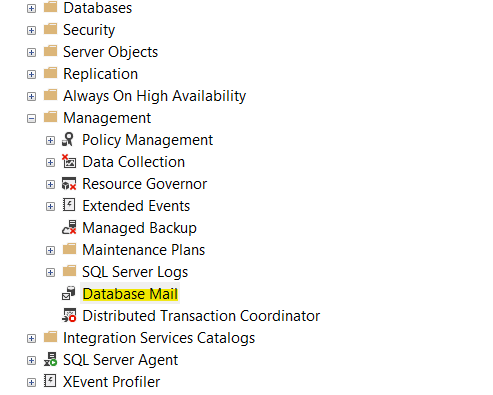
Open up SQL Server Management Studio, Expand the Management Folder and right click Database Mail
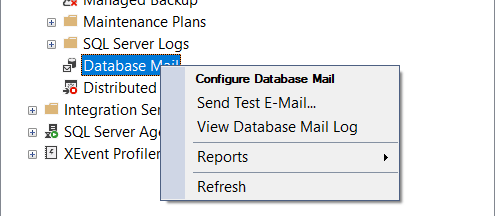
From the menu that appears, right click, Configure Database Mail
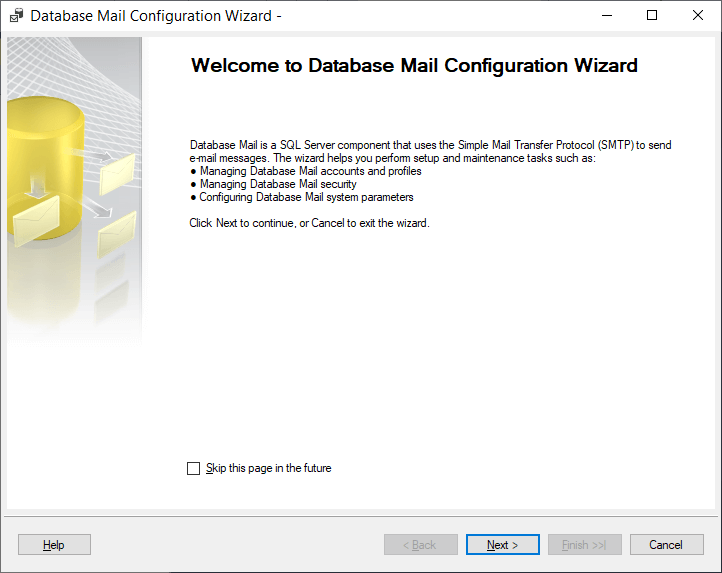
Click Next
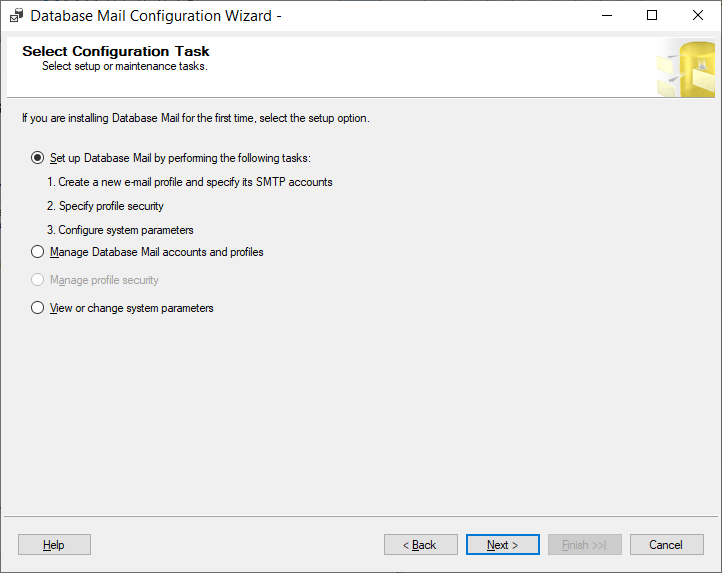
Select, Set-up Database mail by performing the following tasks
- Profile Name - Enter a name for the profile
- Description - enter a description that describes the profile your creating
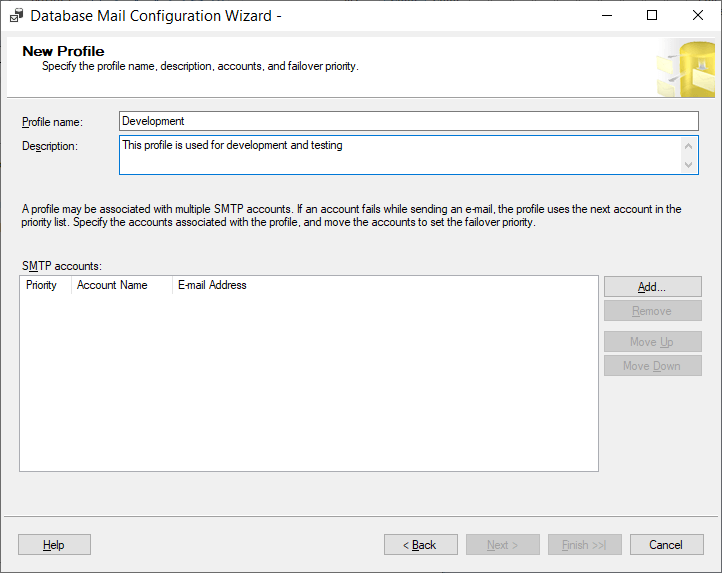
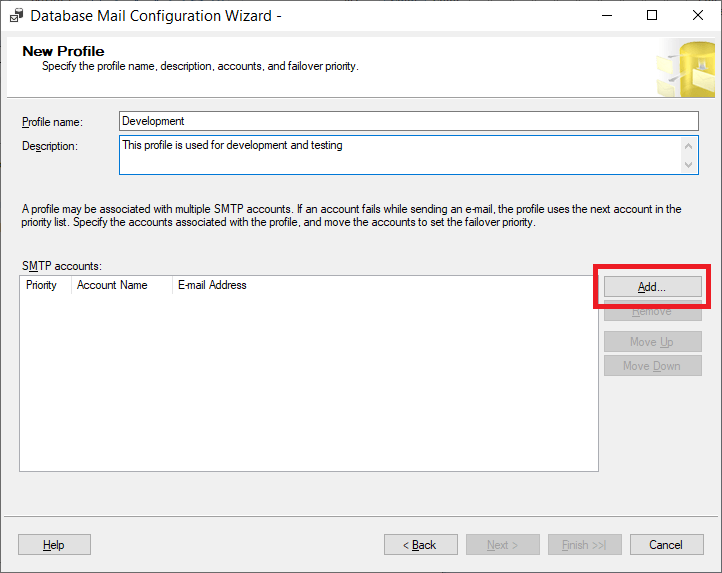
Once that is done, click the Add button next to SMTP Accounts
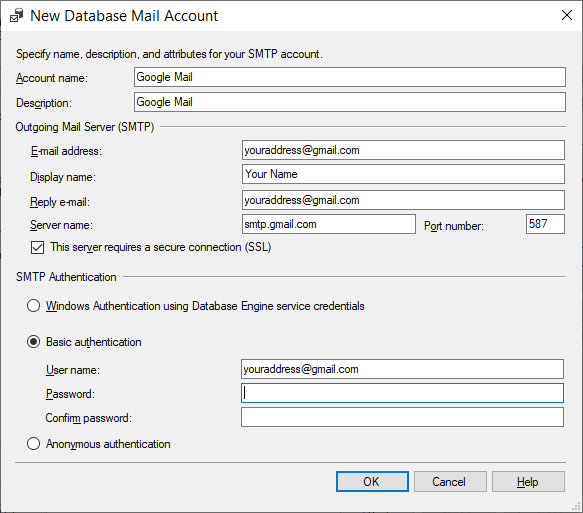
Here is where you specify the details of the connection for the Database Mail
- Account Name - A name for this account
- Description - A desscription of this account.
- Email Address - Your gmail email address
- Display name - Who you want the emails to appear to come from E.G. “Rich In SQL DBA”
- Reply Email - The email address that replies should be sent to
- Server Name - smpt.gmail.com on port 587
Tick the box that says This server requires a secure connection (SSL) failing to do this will result in mail delivery failure.
Select Basic Authentication
- Username - Your gmail email address
- Password - Your gmail password, if you have two factor enabled this will be an application password
- Confirm Password - Confirmation of the password from above.
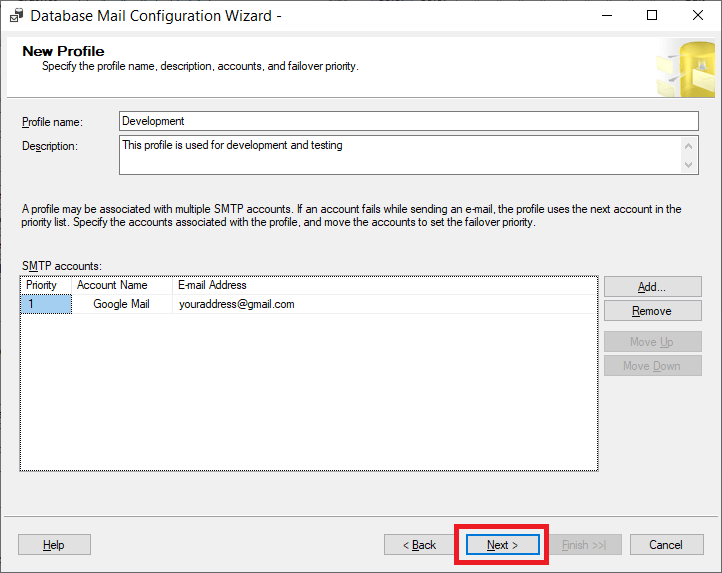
You should now have a screen that looks something like this.
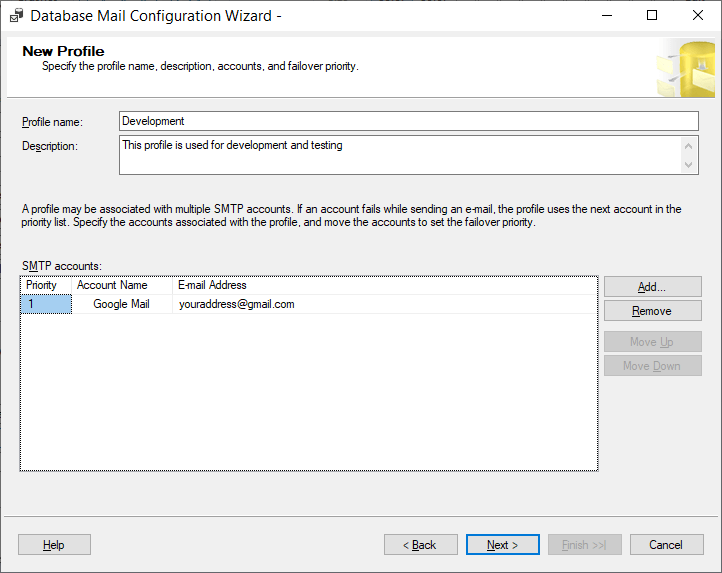
If you do, click Next
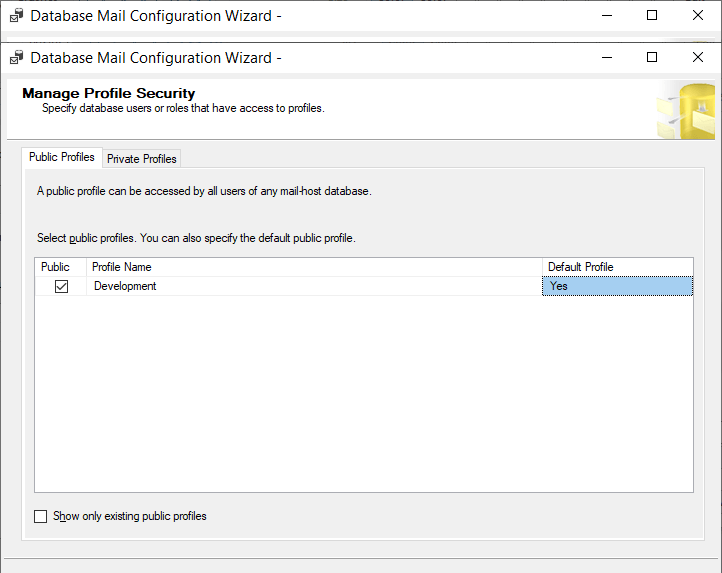
Check the box that says Public and change the Default Profile option to Yes then Click Next
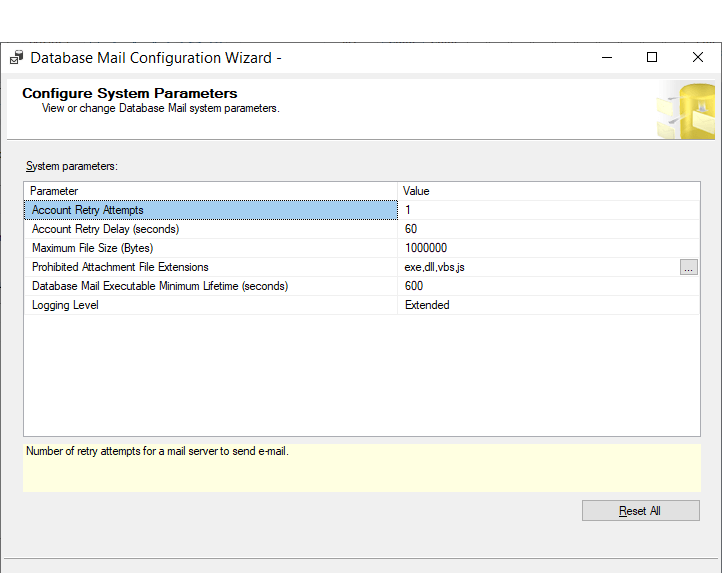
Leave the system parameters as default and Click Next
Click Finish
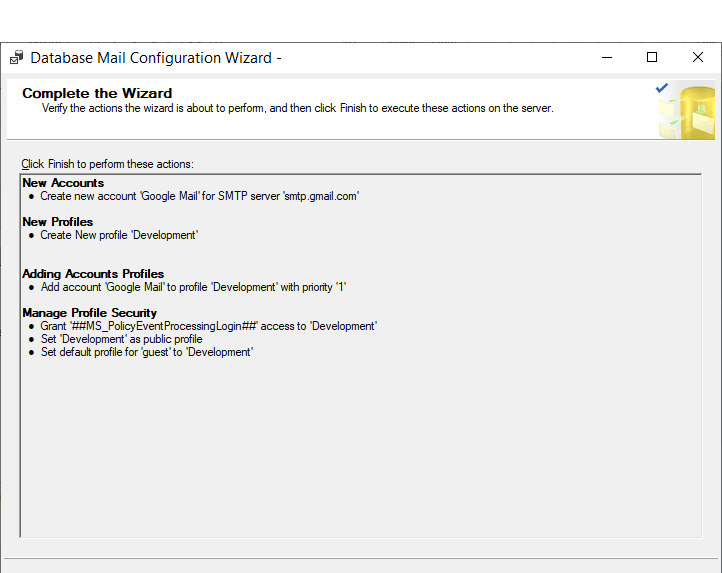
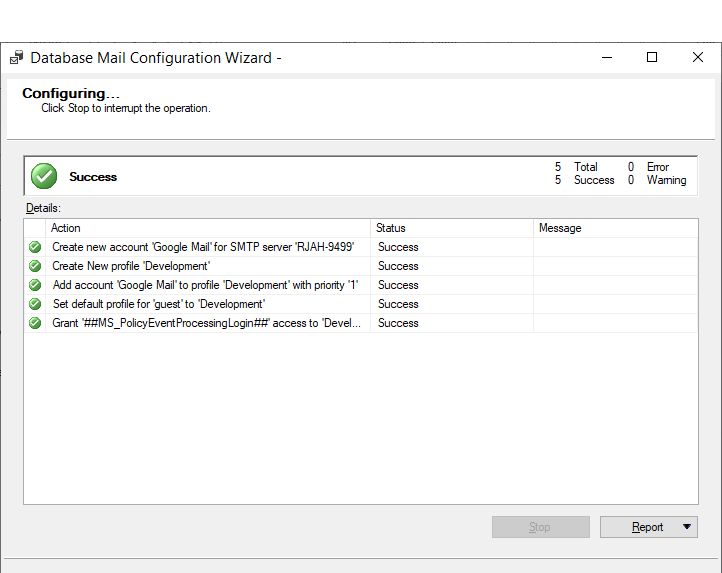
You should now get a configuring screen, if all ticks are green configuration is complete.
Testing
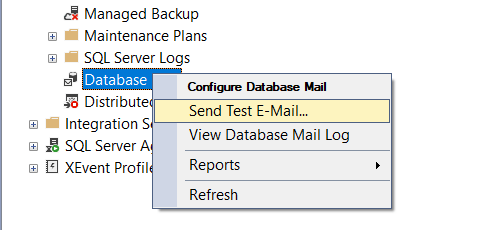
Right click on Database Mail from under the Management folder in the SQL Server Management Studio tree and click *Send Test E-Mail
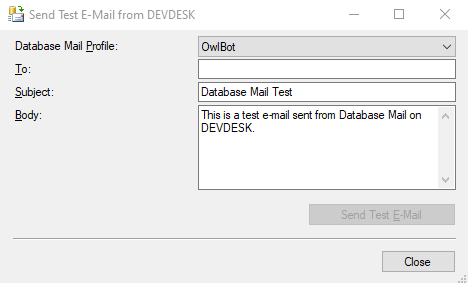
A send test e-mail box should appear
- To - Who you would like the test email to go to
- Subject - The subject of the test email
- Body - The body of the email you are going to send
Once you are happy, click Send Test E-mail
Troubleshooting
You can check to see what emails have been sent by running the following query
SELECT * FROM msdb..sysmail_sentitems
If you need to troubleshoot Database Mail to find out why an email didn’t send you can use this query
SELECT * FROM msdb.dbo.sysmail_event_log;
Filtering that down to just errors using this query
SELECT * FROM msdb.dbo.sysmail_event_log where event_type = 'error';